Telegram Bot Setup
AgEnD talks to you through a Telegram bot in a Forum-mode group: each agent instance gets its own Topic. This guide walks you through creating the bot, preparing the group, and getting the Bot Token agend quickstart asks for. Quickstart finds the group and your User ID itself when you send /start in the group. Takes about 5 minutes.
- • A bot token like
123456789:ABCdefGHIjklMNOpqrsTUVwxyz - • A private group with Topics enabled, with your bot as an admin
- • Your numeric Telegram User ID, which quickstart reads from your
/startand uses to lock the bot to you
Step-by-step
Create the bot with BotFather
- In Telegram, search for @BotFather and open a chat.
- Send
/newbot. - Enter a display name, then a username — it must end with
bot. - BotFather replies with your Bot Token. Keep it somewhere safe.
AGEND_BOT_TOKEN=123456789:ABCdefGHIjklMNOpqrsTUVwxyz
You don't need to set this by hand — agend quickstart prompts for it and writes it to ~/.agend/.env. Treat the token like a password: anyone who has it controls your bot.
Turn off Group Privacy
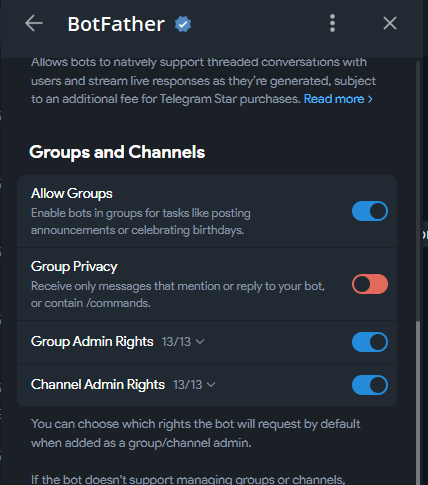
By default a bot only receives messages starting with / or messages that @mention it. AgEnD needs to read everything you type, so privacy mode must be off.
- Send
/mybotsto BotFather. - Pick your bot → Bot Settings → Group Privacy.
- Choose Turn off.
Create a group and enable Topics
- Create a new group in Telegram (a private one, just for you and the bot).
- Open the group settings by tapping the group name.
- Tap Edit (the pencil icon).
- Turn on Topics. Each conversation now lives in its own Topic — that's how AgEnD separates instances.
Add the bot to the group as an admin
- In the group, tap Add Members and search for your bot's username.
- Group settings → Administrators → Add Admin.
- Select your bot and grant the permissions below.
| Permission | Required? | Why |
|---|---|---|
| Manage Topics | Required | Create and manage the per-instance Topics |
| Send Messages | Required | Reply inside Topics |
| Edit Messages | Required | Live progress updates on sent messages |
| Delete Messages | Recommended | Housekeeping / cleaning up noise |
| Pin Messages | Optional | Pin important messages |
Get your User ID
Your User ID is what locks the bot down to you. It goes into fleet.yaml under access control: without an access list, anyone who finds your bot could drive your agents. Quickstart takes yours from the /start you send in the group, so you only need to look it up to check it, or to add a teammate later.
- Search for @userinfobot in Telegram.
- Send it any message.
- It replies with your User ID — a plain number.
agend quickstart writes it out for you:
channel:
  access:
    mode: locked
    allowed_users:
      - '951494522'    # your user ID
Add more IDs to the list if you want to share the fleet with teammates.
Run quickstart
agend quickstart # pick Telegram, paste the token, then send /start in the group
Quickstart waits for your /start in the group and takes the group and your User ID from it. At the end it offers to install the fleet as a service and start it. If you said no, runagend start.
Then send a message in the group's General topic. If the bot answers, you're done — start adding project instances from there. To open the web dashboard, send /web in General: the bot sends you a sign-in link and a one-time code privately (open a private chat with the bot first).
Troubleshooting
| Symptom | Cause | Fix |
|---|---|---|
| Bot doesn't reply | Bot isn't an admin | Group settings → Administrators → add the bot |
| New Topics aren't created | Missing Manage Topics | Edit the bot's admin rights and enable Manage Topics |
| Bot receives nothing | Group Privacy still on | BotFather → /mybots → Bot Settings → Group Privacy → Turn off |
| Wrong group ID format | Truncated ID | Supergroup IDs start with -100, e.g. -1001234567890 |
| Quickstart says another process is already reading this bot's updates | A running AgEnD, or a second quickstart, uses the same token | Stop it (agend stop) and run quickstart again |
| A teammate can't use the bot | Only one user allowed | Add their user ID to allowed_users |