
What's new in 2.2
This is the 2.2 page, kept for reference. For the current release, see What’s new in 2.3.
AgEnD 2.2 adds a web app next to Telegram and Discord. You can talk to your agents from a browser, see everything that is waiting on you in one place, and run a second Claude account. The fleet also brings its own Node and survives upgrades on more kinds of hosts. 2.2.5 adds more: agents with a look of their own, guests who sign in to see their own agents, a usage page, and a sidebar that keeps up. This page is for people coming from 2.1.x or 2.2.0; it lists what you will notice, with links to the details, and marks what 2.2.5 adds.
Upgrade in one step
Section titled “Upgrade in one step”- From 2.1.12 on Linux or macOS: send
/updatein General, or runagend updateon the host. The fleet restarts on 2.2, and General gets a short note about what is new. This covers Linux with glibc 2.28 or newer and systemd (WSL included, with systemd on), and macOS 11 or newer, on x64 or arm64. - From 2.1.0–2.1.11, or on any other platform: follow the upgrade guide’s manual steps.
- From 2.2.0 or 2.2.1: send
/updatein General, or runagend update, to move to 2.2.5. Running agents are told once about the tools they gained. - While it runs, the chat shows each step (download, install, restart), and a failure says which step failed and why. From 2.2 on, a failed update also names the update log.
Chat with your agents in the browser
Section titled “Chat with your agents in the browser”
- Sign in with a one-time code. Send
/webin General. Choose 💻 AgEnD computer to sign in on the machine running AgEnD, or 🌐 Other device for a phone or another computer through a temporary public link. A code works once, for five minutes. No link carries a password any more. - The same conversation as your topic. What you write on the web reaches the agent exactly as a Telegram or Discord message would. For a fleet topic the chat platform sees it too, and from 2.2.5 so does a ClassicBot room (
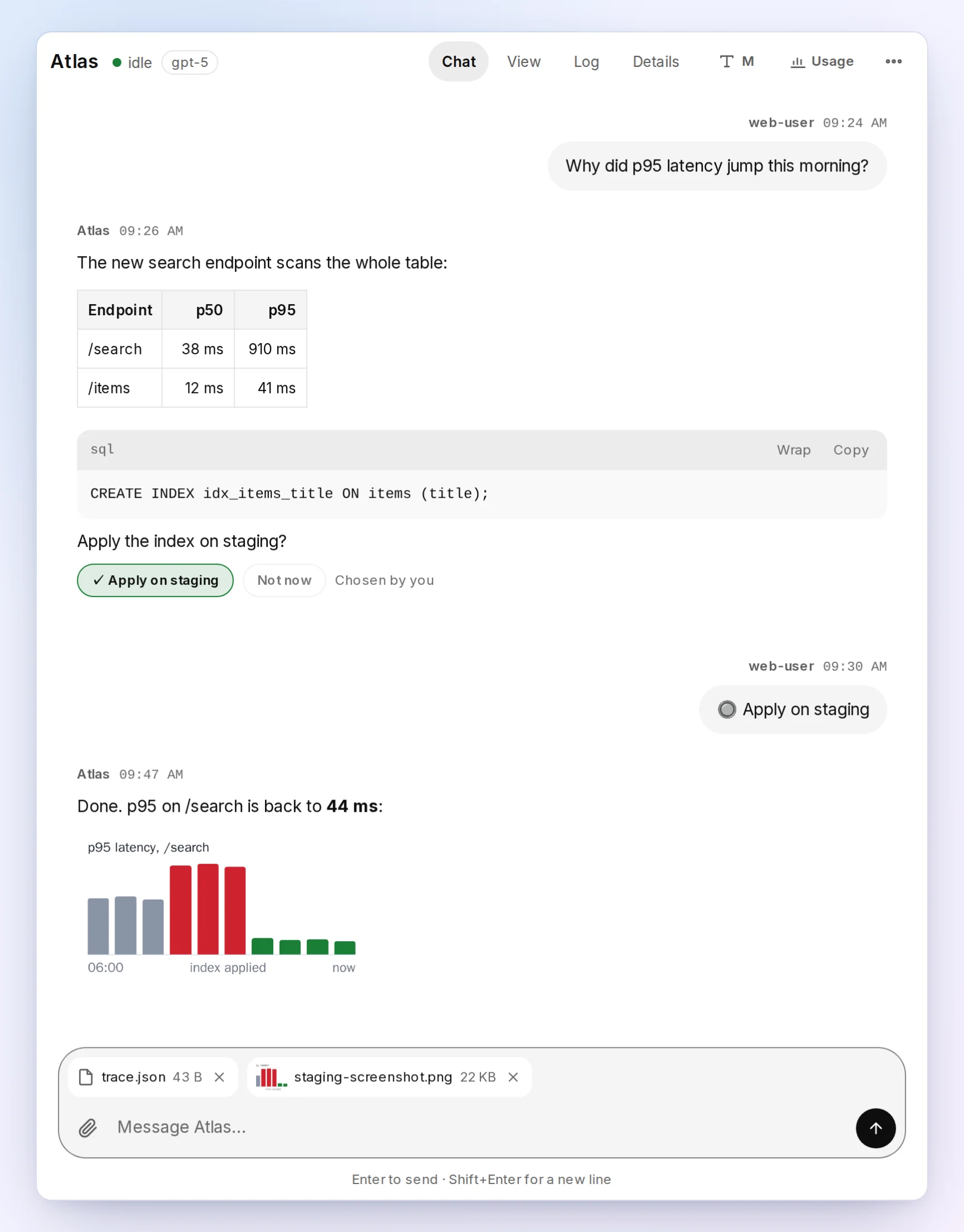
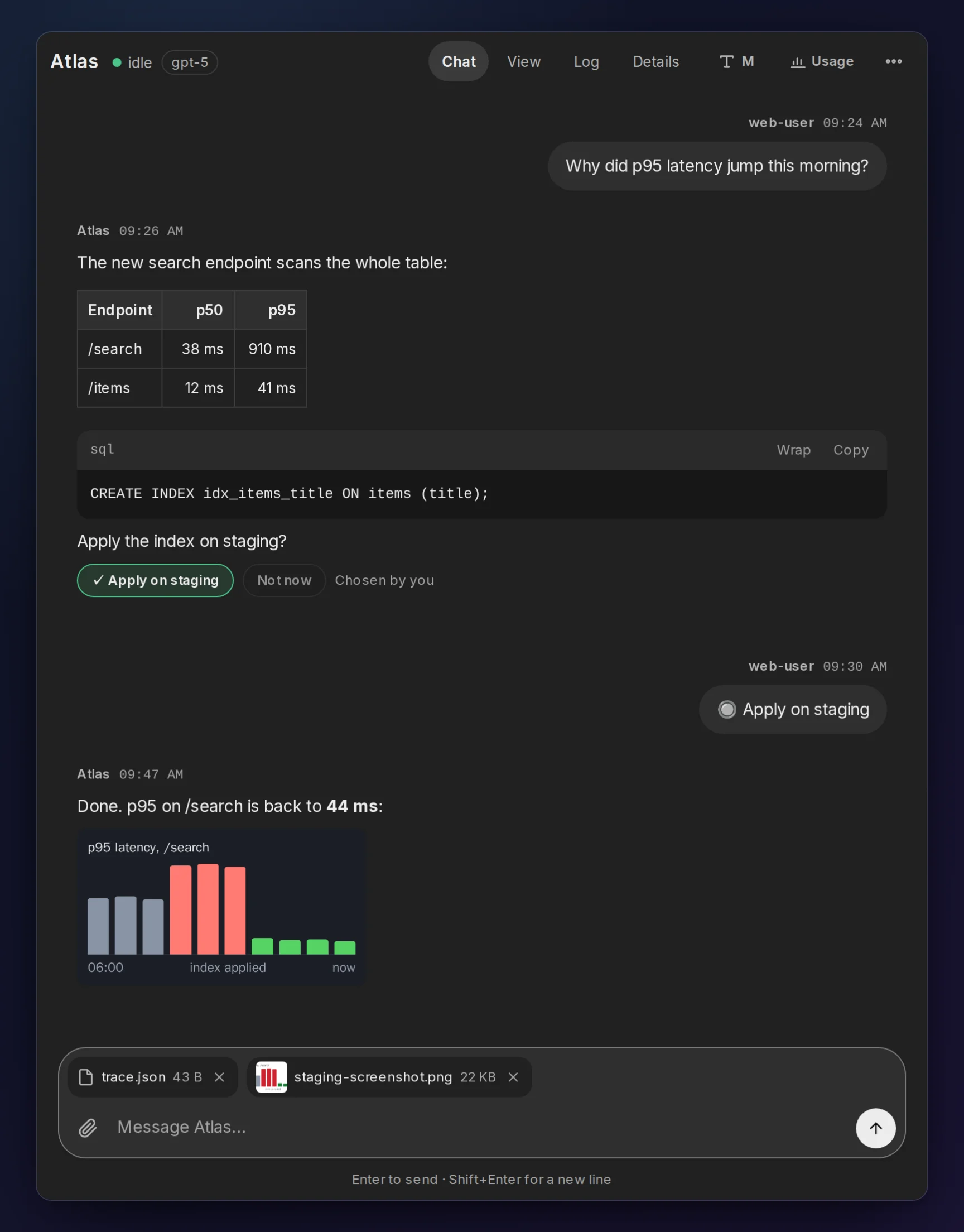
web_echo: falsekeeps a room quiet). The history is still there after a reload or a fleet restart. - A real chat. It shows Markdown, tables and highlighted code. You can send files of any type, up to 50 MB each and 100 MB per message by default (
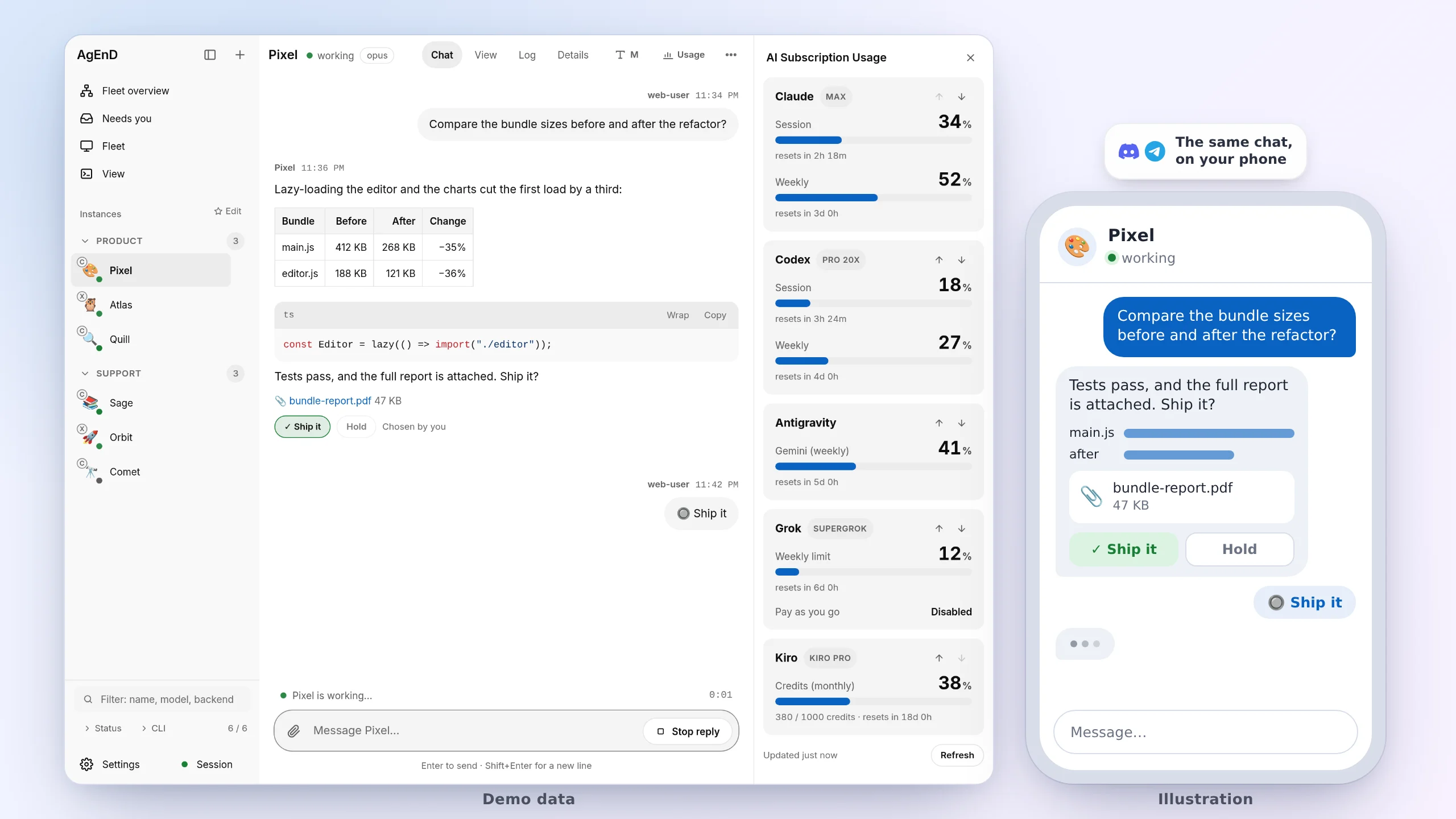
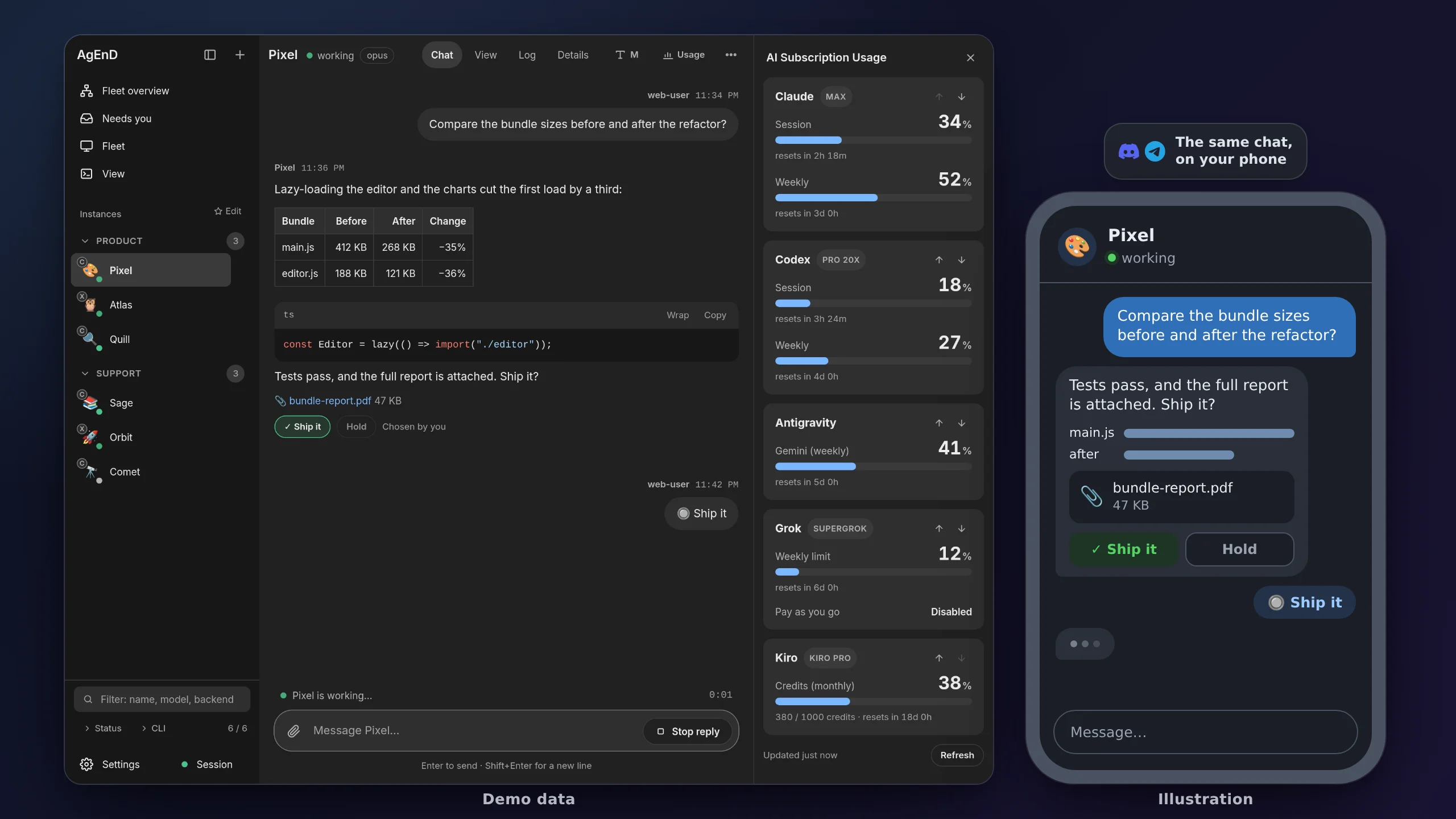
web.upload_max_file_mb/web.upload_max_total_mb); images and media preview inline. It shows where each message got to, shows when the agent is working, and has a Stop button. It also shows reply buttons and polls the agent offers, and mentions the way Discord and Telegram show them. - HTML previews. When an agent sends a page, you can open it in a panel beside the chat. Previews are off until you turn them on; the choice then applies on every device where you are signed in, but never on the public link. The preview runs on its own isolated address.
- Works on a phone. Swipe to open the sidebar; light and dark themes; keyboard and screen-reader support.
- Switching is instant (2.2.5). The last 12 chats you opened (6 on a phone) come back at once, where you left them, and nothing on screen jumps while a chat fills in.
- A paused agent wakes up (2.2.5). Writing to a paused agent wakes it and delivers the message. If it can’t wake, the chat says why, keeps what you wrote and offers Retry send.
- No chat platform needed. A fleet can run from the web dashboard alone. Setup in the browser takes bot tokens and invites a Discord bot. Once AgEnD already runs one connection, it adds another without a restart.
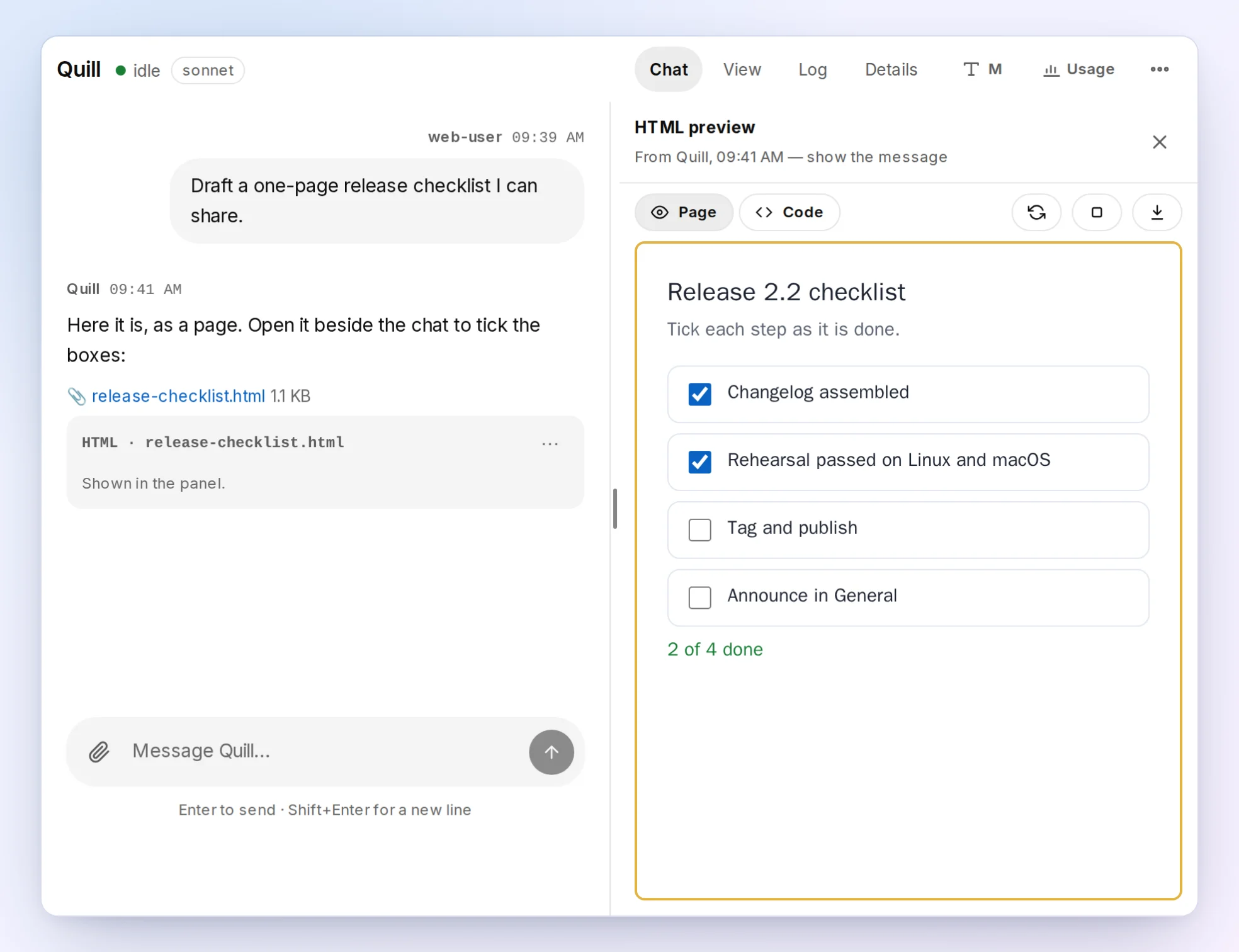
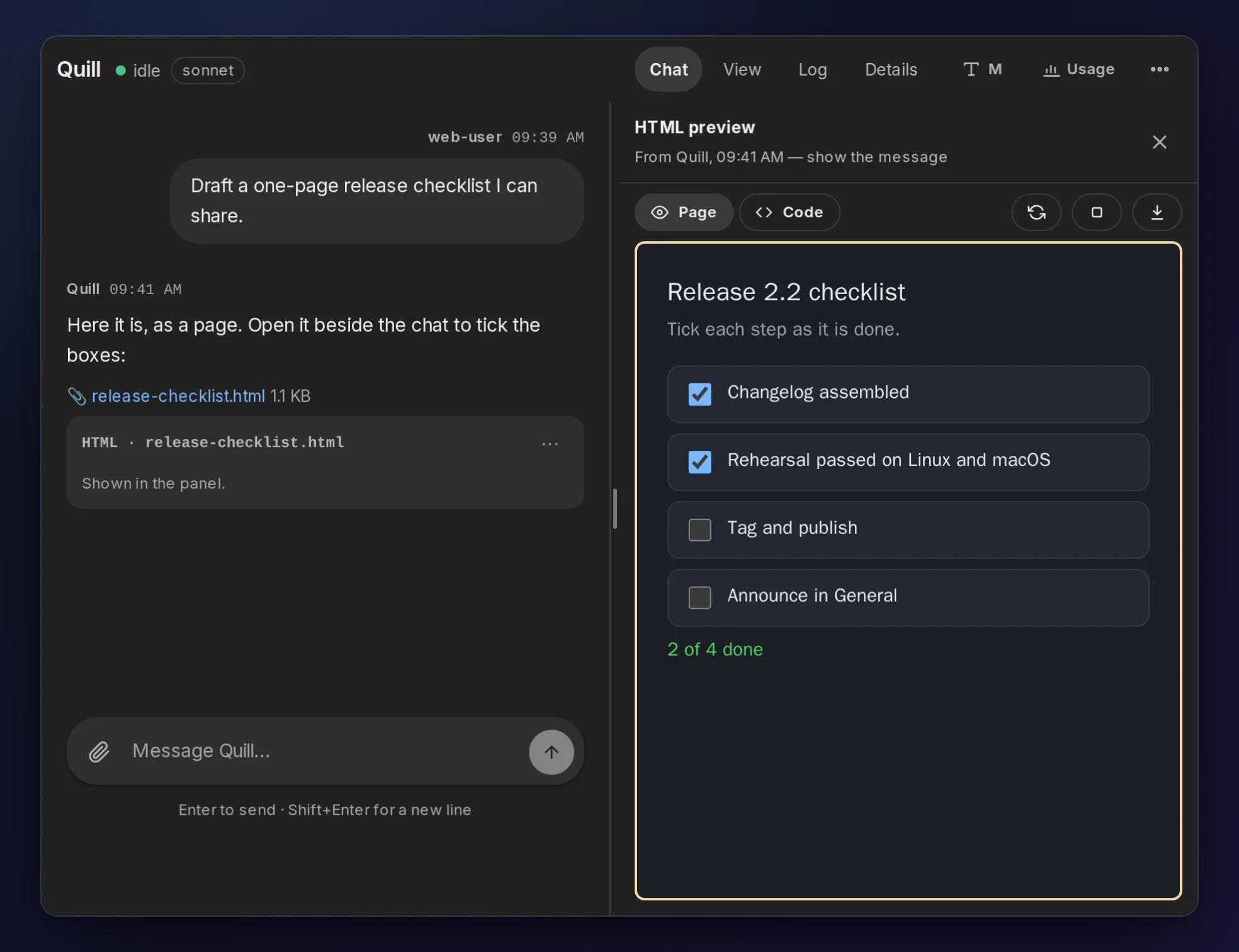
See the web dashboard guide, or the Web Guide on the website.
Make the dashboard yours (2.2.5)
Section titled “Make the dashboard yours (2.2.5)”
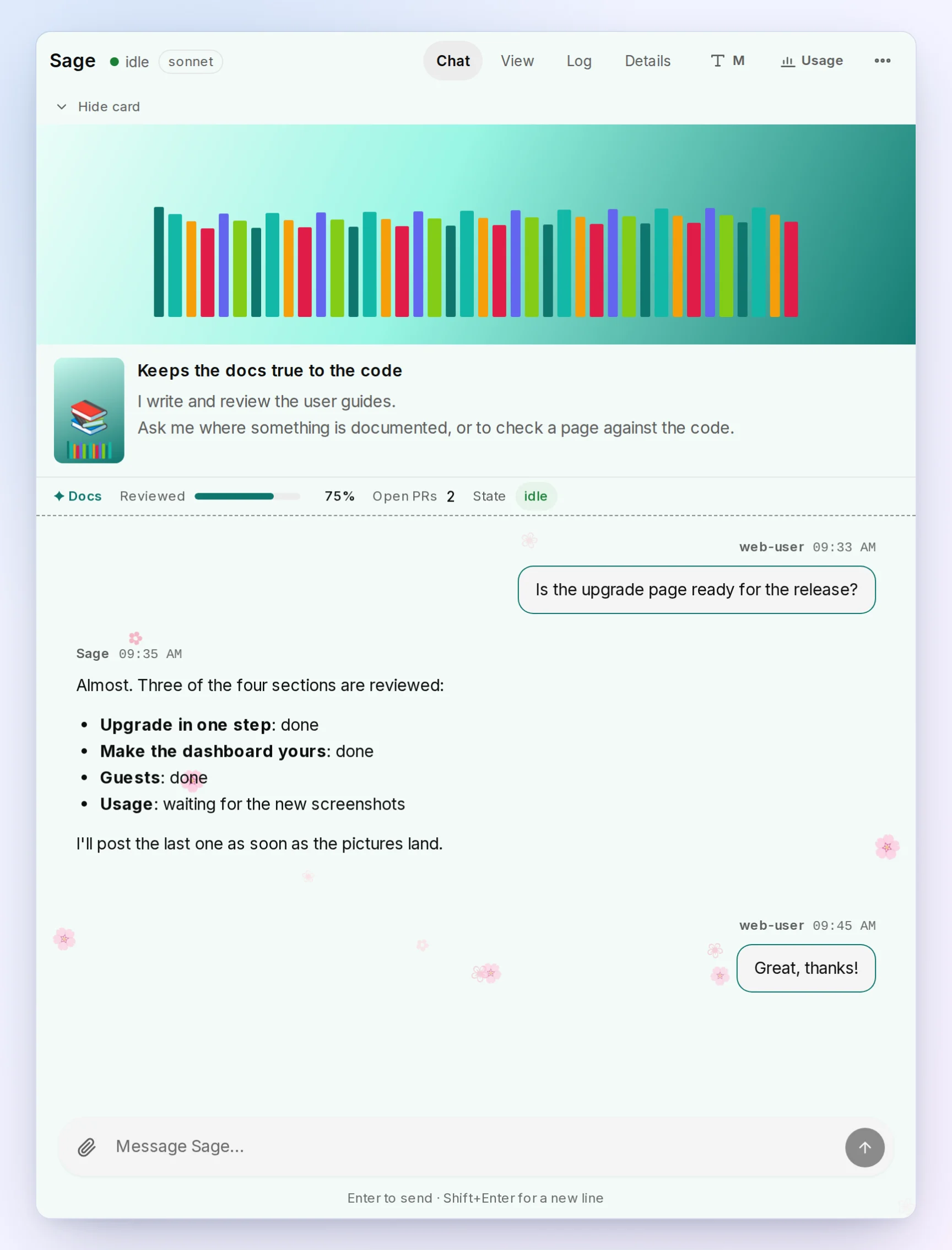
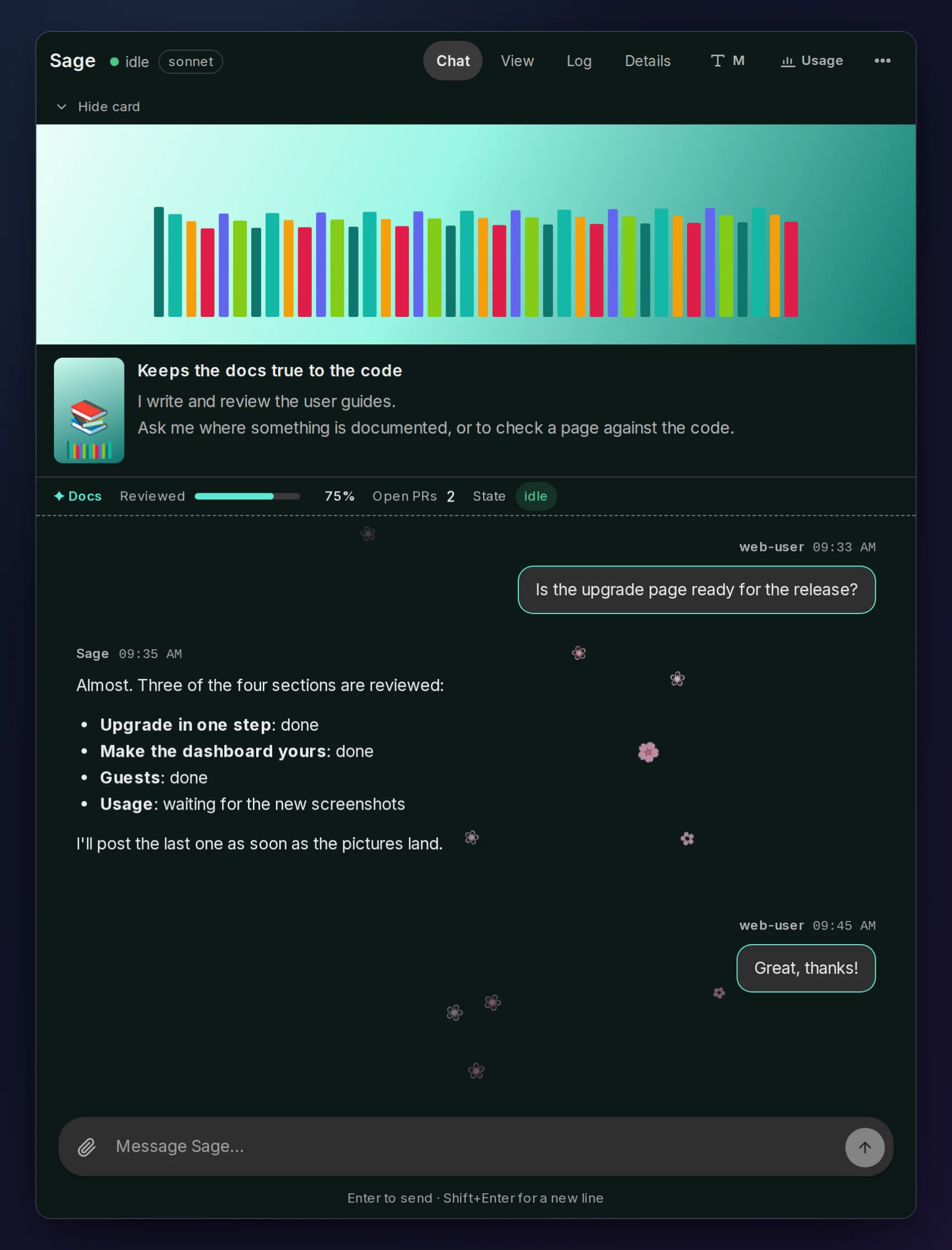
- Agents’ themes. An agent can give its own chat a look: colours for light and dark, accent, bubbles, font, a background picture, its own picture and its working label. A signed-in admin can lock or reset it from the chat’s ⋯ menu.
- Identity cards. Each agent can have a portrait, a banner, a tagline and a bio, shown in its Details, in View and folded into its chat. You can set your own version of any field in View’s Edit profile, and yours wins.
- Identity colours. Pick a colour for each agent (⋯ → Colour…) and where it shows: its name, a bar beside it, or the ring around its picture.
- Widgets. An agent can put a small panel under its chat header and on its Details page: numbers, a progress bar, a short list, a sparkline. The dashboard draws it with its own components, never with the agent’s HTML or script.
- Ambient effects. An agent can decorate its chat with falling petals, snow, rising lanterns, twinkles, or stars where you click. The dashboard draws them behind the messages, and they never take a click.
- Your own custom CSS, and mods. Settings → Web appearance holds a stylesheet for your own screens, tried before you keep it. A mod is one file that carries a look: you see everything in it, then choose which parts to apply.
- Just ask. General can change Settings → Web appearance for you in chat.
See the web appearance part of the web dashboard guide.
Everything that needs you, in one list
Section titled “Everything that needs you, in one list”
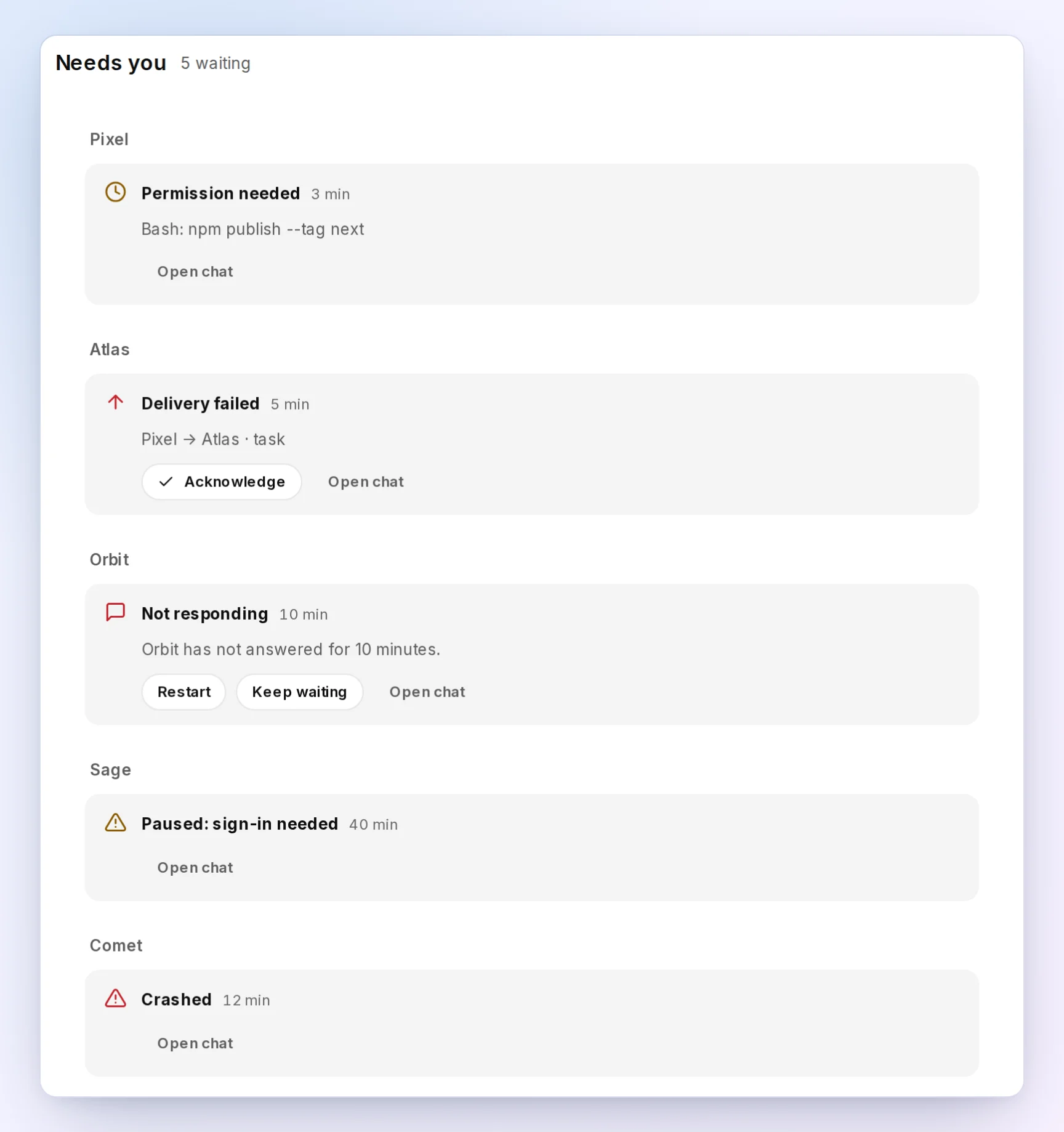
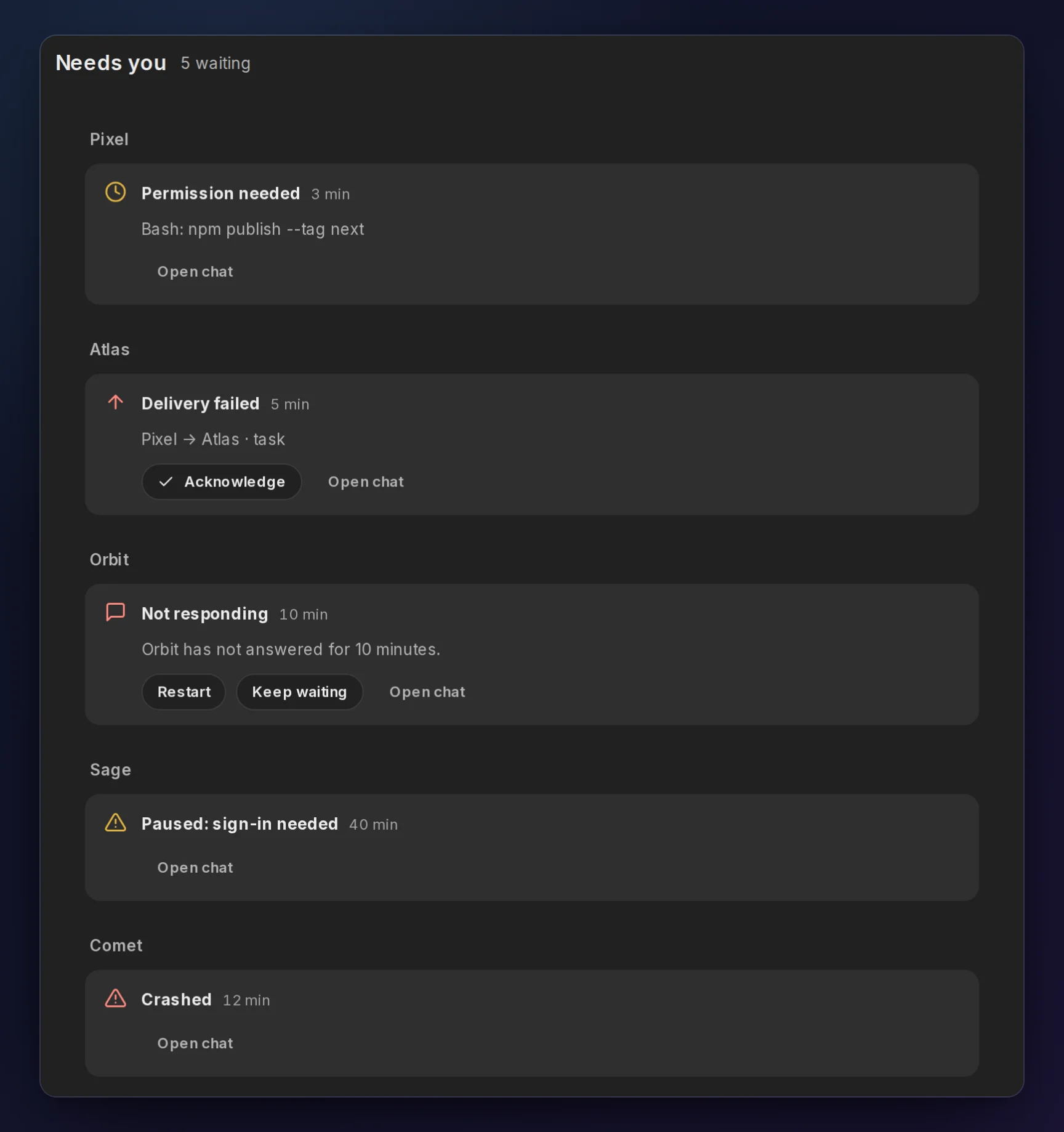
Needs you collects every prompt, permission request, sign-in, crashed agent and unconfirmed delivery across your bots. It is a live message in General, and a page in the web app. Something you handle anywhere, whether in Discord, Telegram or the web, leaves every list. See Needs you.
Guests, and your account behind the browser (2.2.5)
Section titled “Guests, and your account behind the browser (2.2.5)”
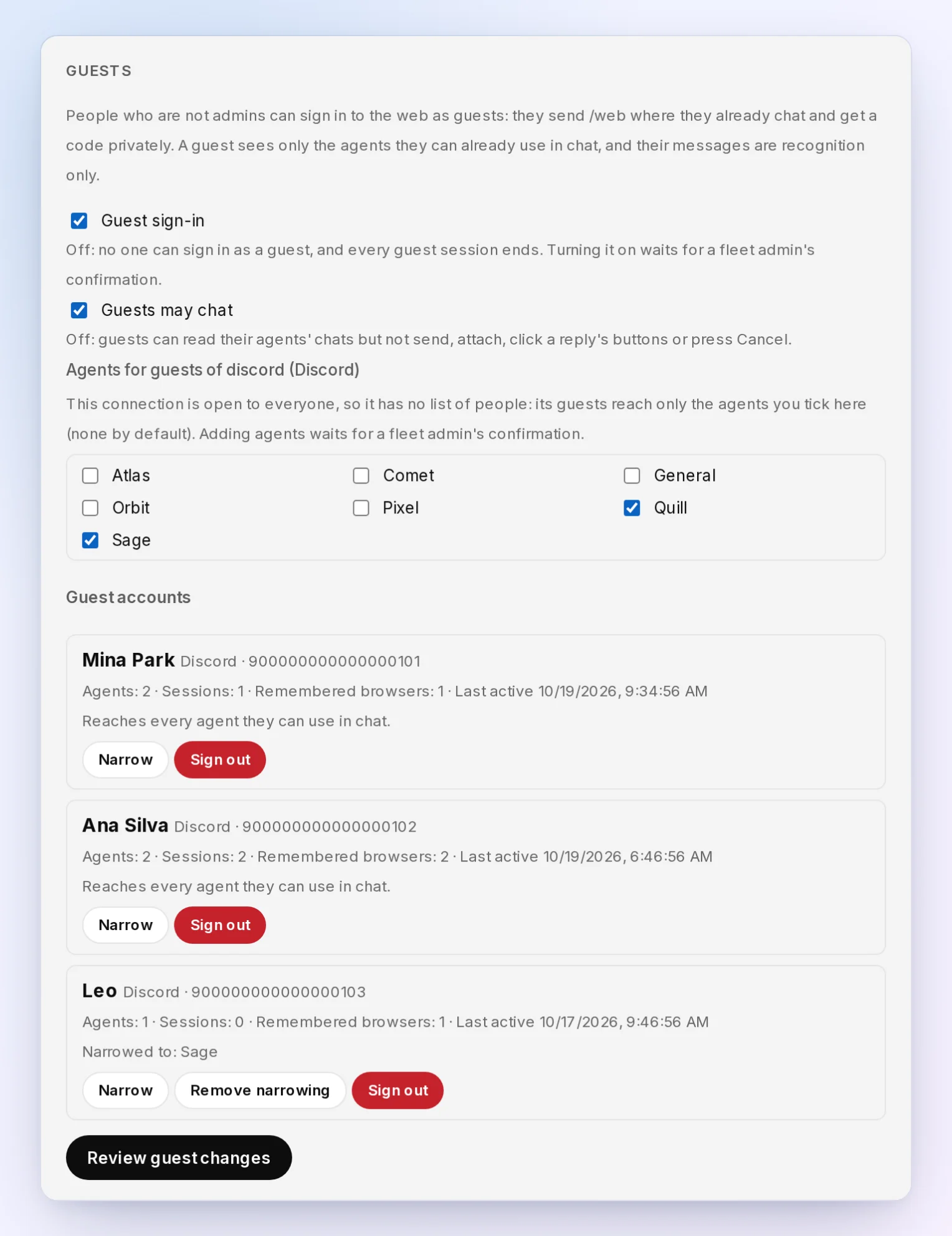
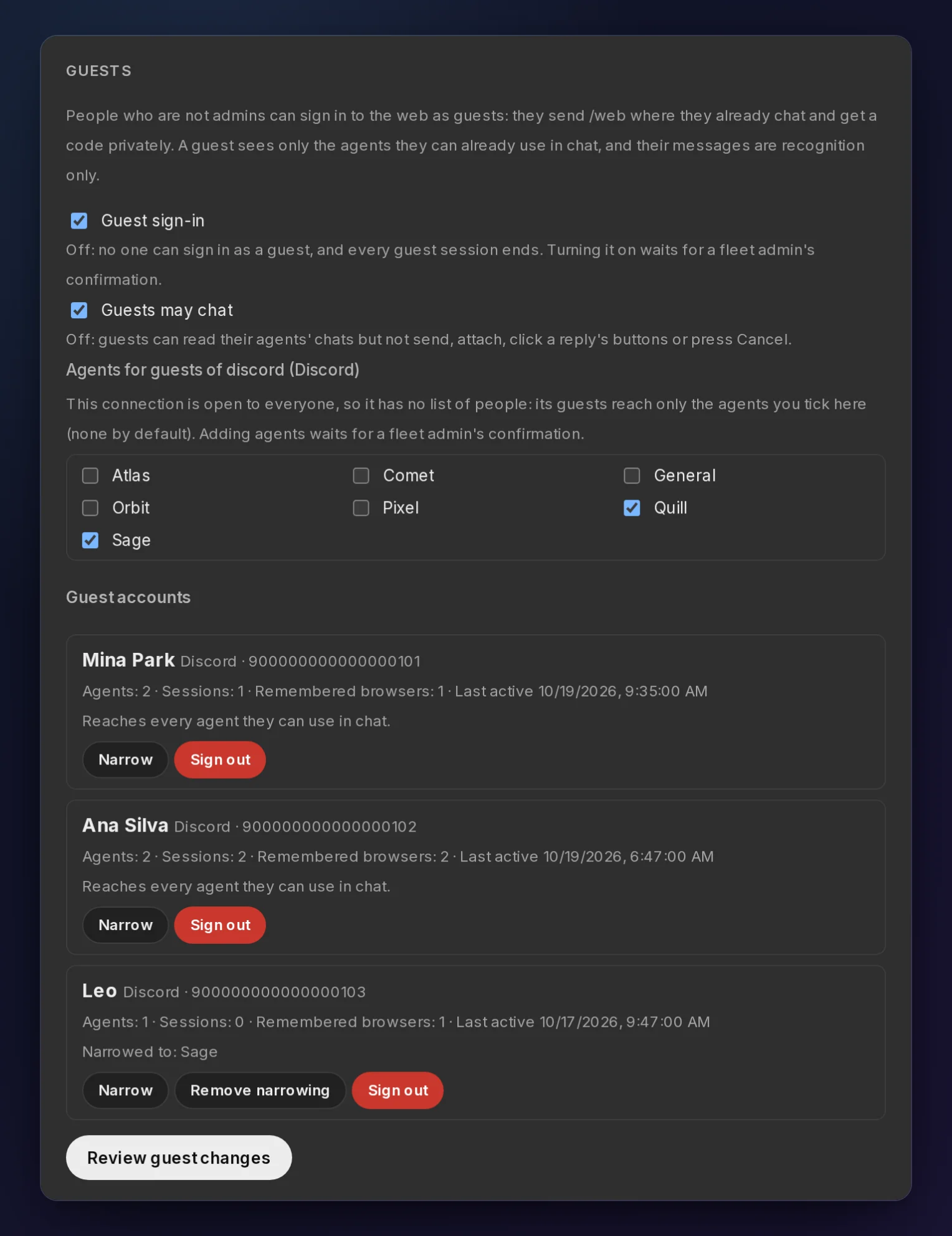
- Guest sign-in (off by default; Settings → Web → Guests). People who aren’t fleet admins sign in with their own Discord or Telegram account and see only the agents they can already use in chat. Every guest sign-in is posted in General, and a guest only chats: no commands, no Fleet, no Settings.
- Agents do what you ask from the web. A message from an admin signed in with a
/webcode is that person. Agents answer it and do ordinary work for it: questions, looking things up, analysis, and changes in their own scope. - Authorize this browser for the rest. A go-ahead action, such as a release or anything destructive beyond the agent’s own work, needs your account behind it: press Authorize this browser under the message box and confirm the card in your Discord or Telegram DM, or answer in Discord or Telegram.
See Guest web sign-in and who the agent sees.
More than one Claude account
Section titled “More than one Claude account”
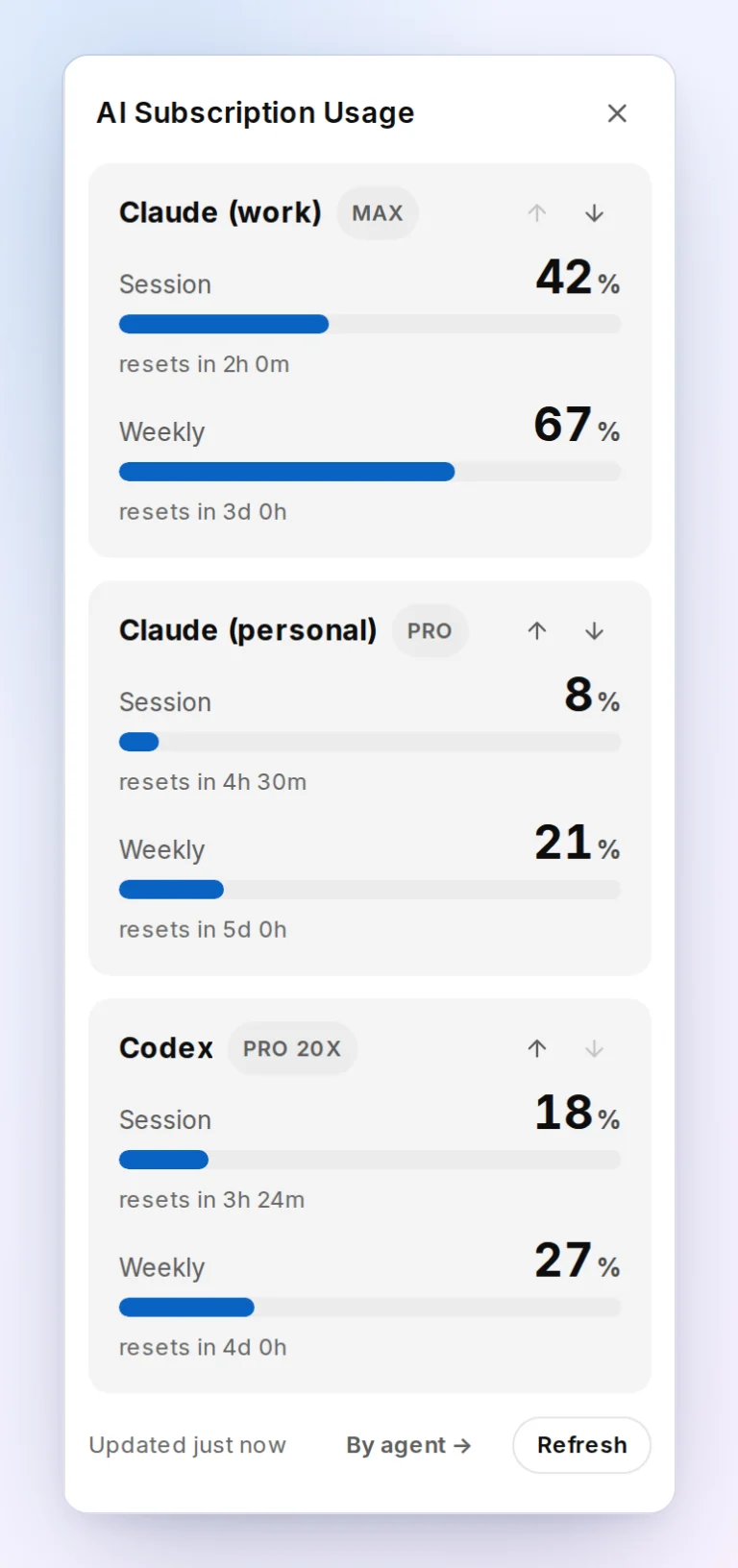
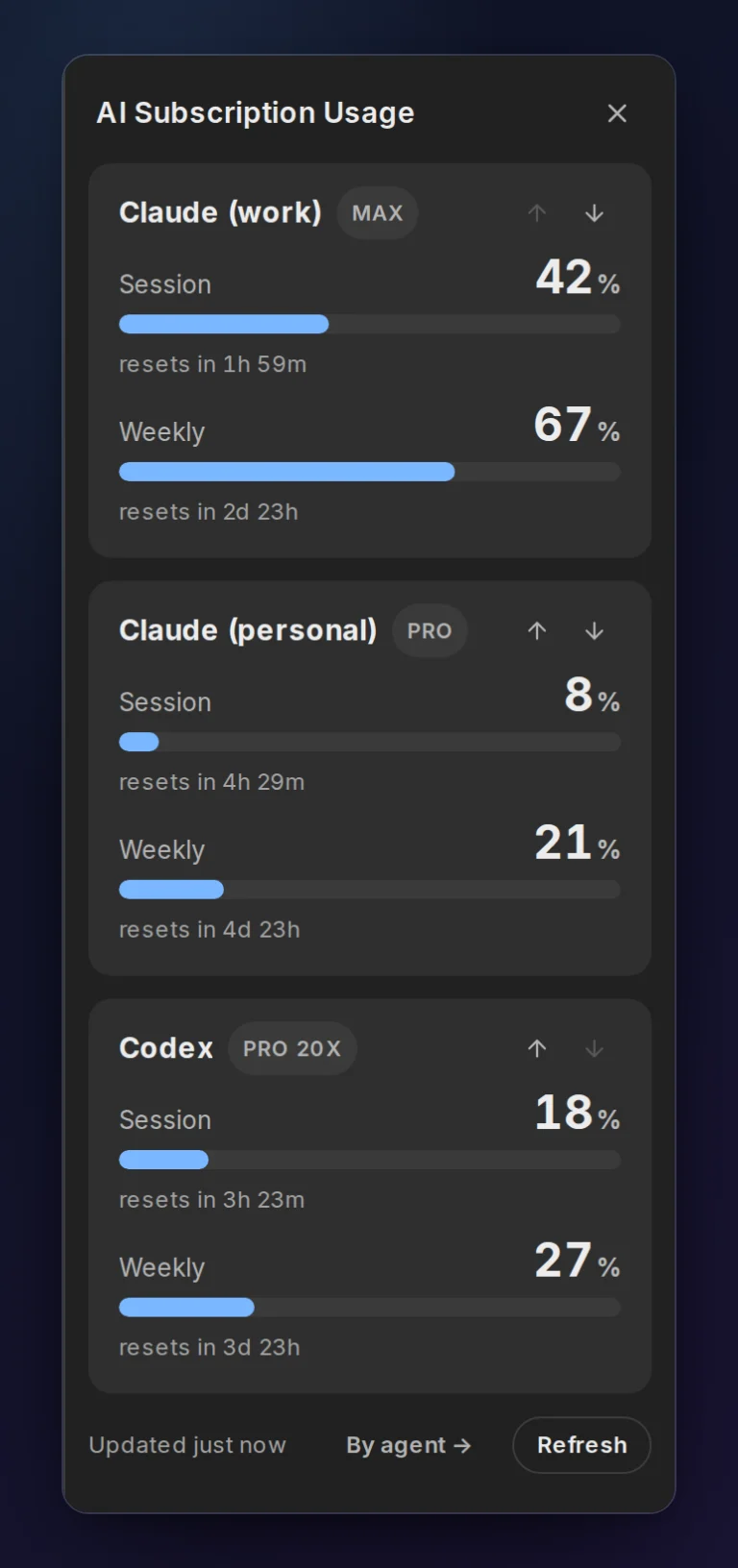
- Credential profiles for Claude Code. An instance can run on another claude.ai account with
backend_options.claude-code.credential_profile, as Codex and kiro-cli can. Sign a profile in from chat with/login claude-code <profile>. Usage shows one row per profile, and switching an agent to another profile keeps its conversation. See credential profiles. - Switch an agent’s CLI from chat.
/backendmoves an instance to another backend, then lets you pick the model and effort, with one restart. - Lists, not guesses (2.2.5).
/backendand the Create agent dialog show every backend, and say why one can’t run on this host. Every backend and model field in web Settings is a list of what the agent’s account offers, and/modellists that account’s models.
See what your fleet is doing
Section titled “See what your fleet is doing”
- Usage. The usage panel (◔) shows the remaining quota of each subscription, on the right of a wide screen.
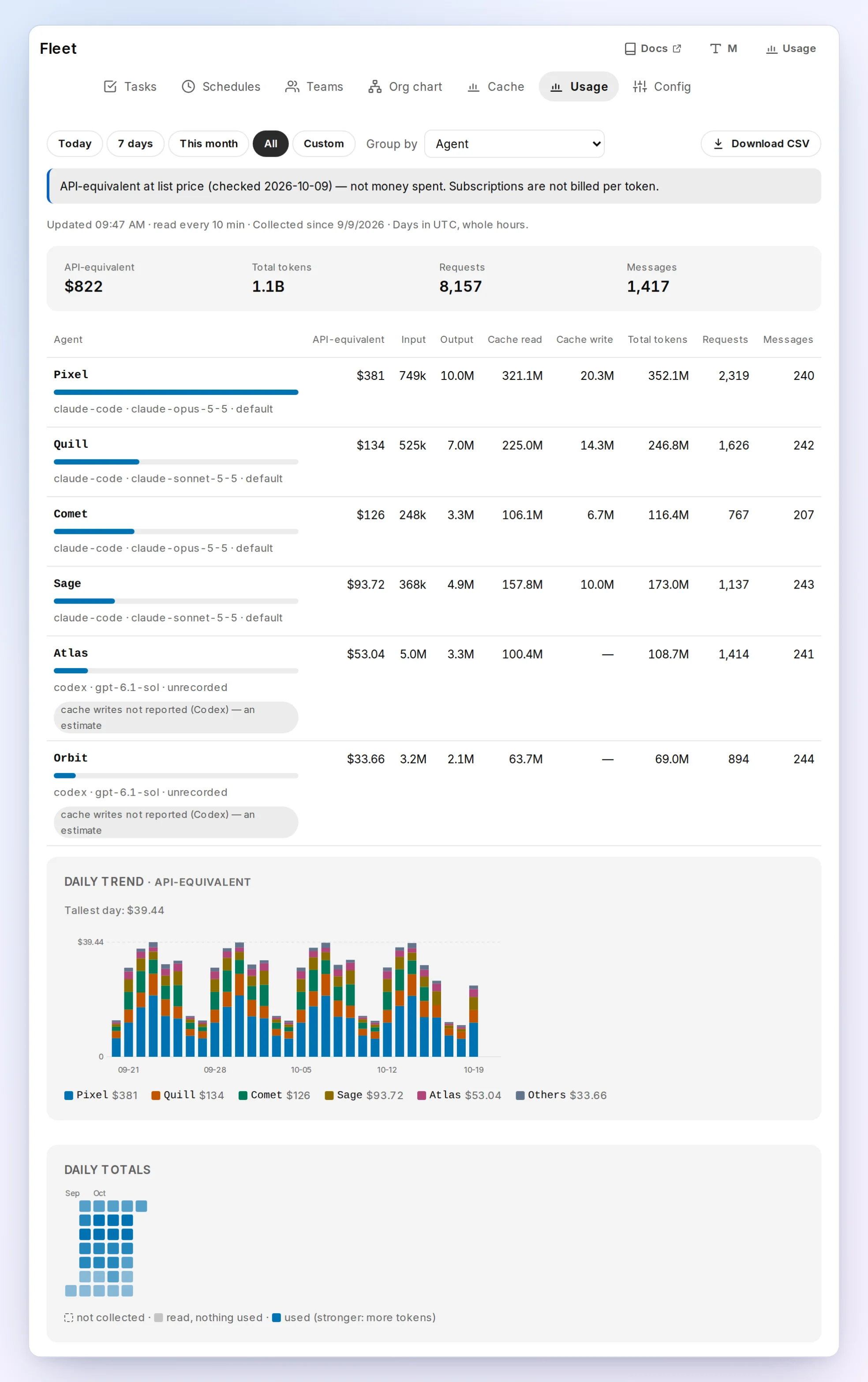
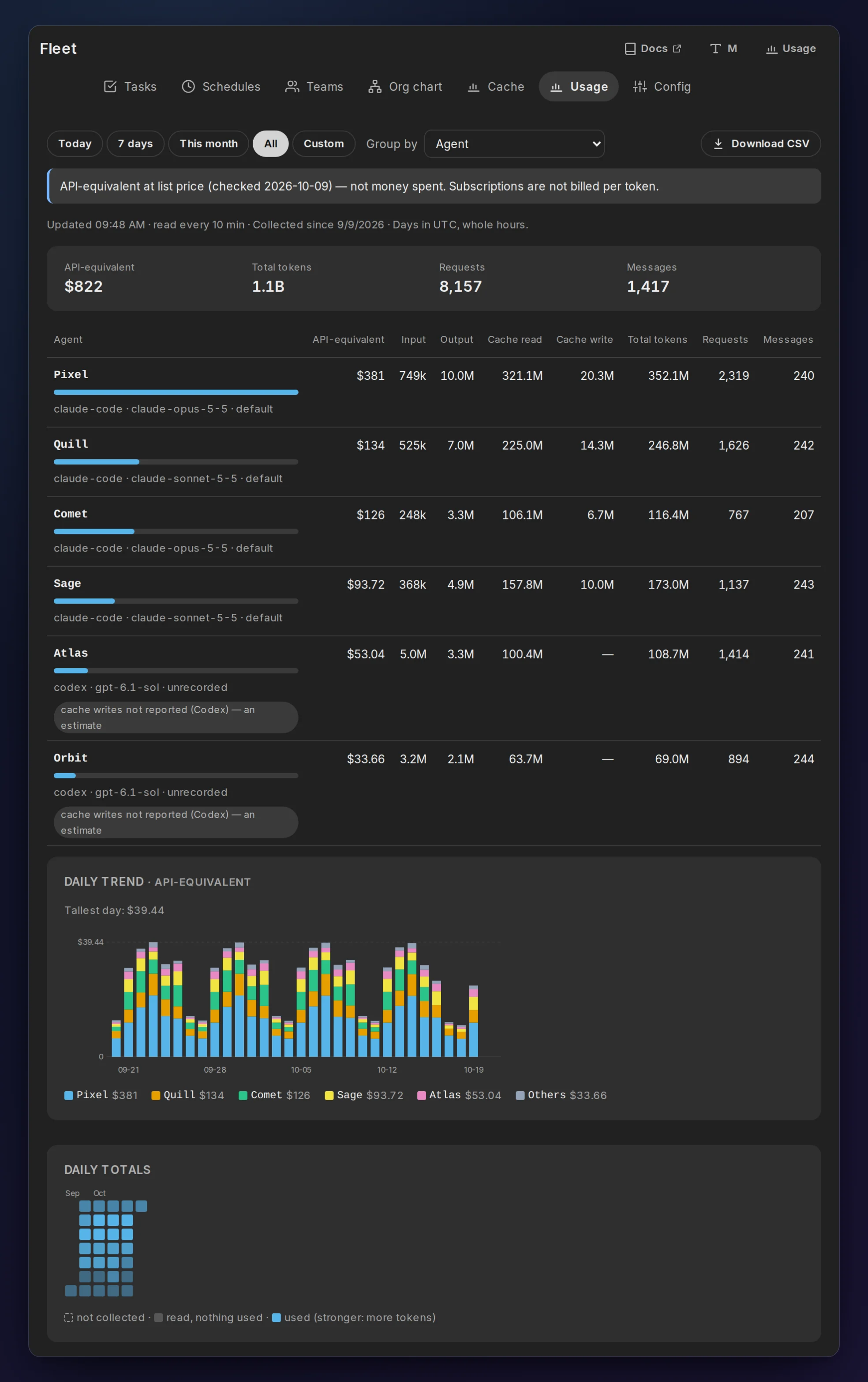
- Fleet → Usage (2.2.5). Each agent’s tokens, requests and API-equivalent at list price (not money spent), by agent, backend, model, profile or team, with a daily trend, a calendar heatmap and a CSV download.
-
Log tab (opt-in,
web.log_tab: true). It shows an instance’s prompts, replies and tool calls step by step, with secret values masked, for Claude Code and Codex. -
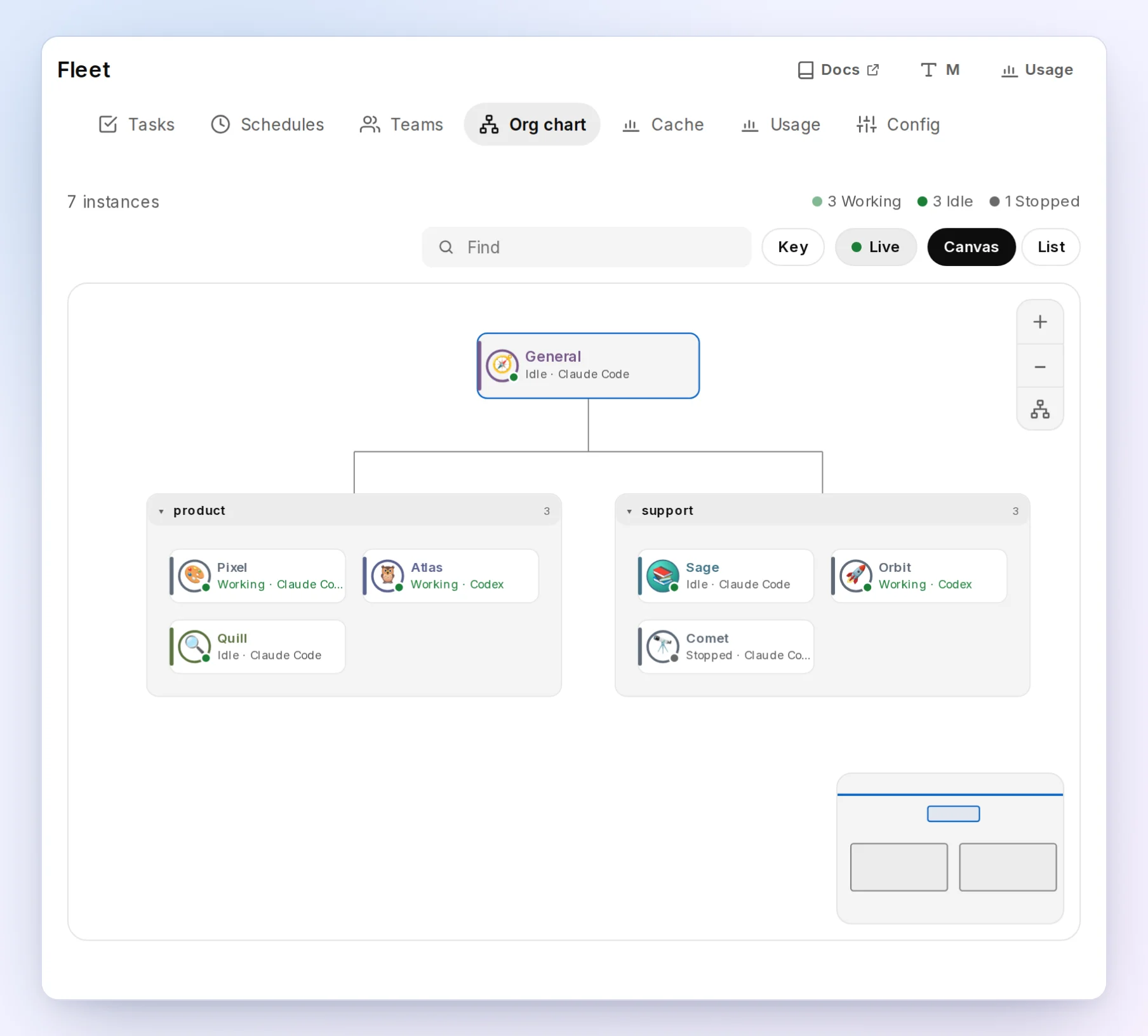
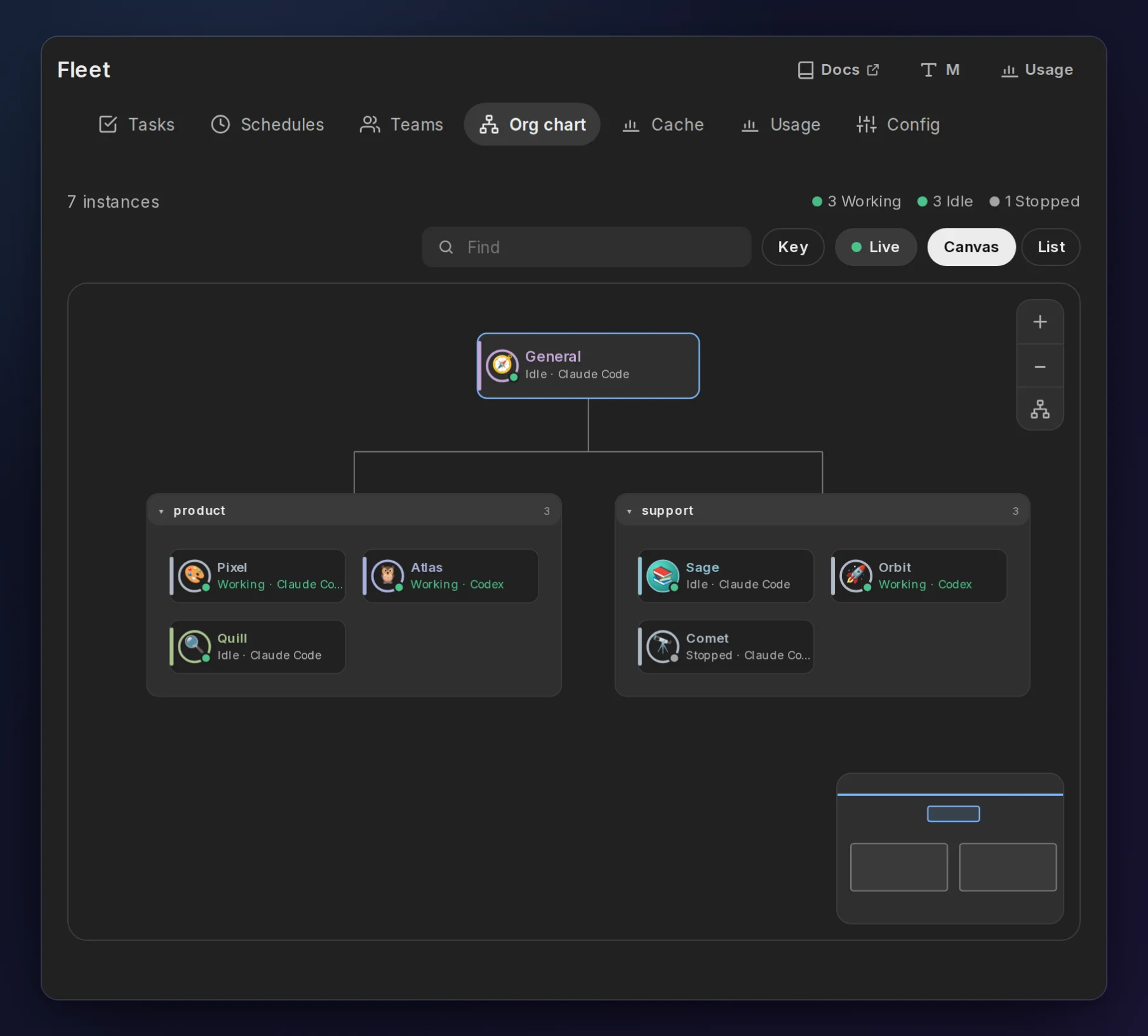
Fleet pages. Edit schedules and teams on the web. An org chart shows who does what (from 2.2.5 a canvas you pan and zoom, with live traffic between agents), a cache page shows how often each agent’s prompt cache expires, and each instance has a Details page.
-
A sidebar that keeps up (2.2.5). Each agent shows when it last replied, agents sit under their teams, the one you have open stays on top while you filter, and New agent is at the end of the list. On a phone, four tabs: Chat, Needs you, Fleet and Settings.
AgEnD brings its own Node
Section titled “AgEnD brings its own Node”On Linux (glibc 2.28 or newer) and macOS 11 or newer, x64 or arm64, AgEnD installs and runs on its own Node 22.23.3, whatever Node is on your PATH. You no longer have to upgrade Node yourself. Elsewhere it needs Node 22.14 or newer. See the upgrade guide.
Upgrades that hold up on real hosts
Section titled “Upgrades that hold up on real hosts”- macOS: an update started from an agent’s own pane finishes; it no longer leaves the fleet stopped halfway.
- Linux, root fleets with a system unit: the update now moves the unit to the new release, so the fleet really runs 2.2.
- Hosts without a user session bus, or with a custom
AGEND_HOME: the service is updated and restarted correctly. - Telegram shows the end of an update (2.2.5). The update message no longer stops at “Starting… N/M”; it reaches “✅ AgEnD updated”.
- From 2.2 on, a refused install says why. An update run by 2.2 or later shows AgEnD’s own reason in chat instead of npm’s bare “code 1”. The hop from 2.1.12 still runs 2.1.12’s updater.
Safer by default
Section titled “Safer by default”- Sign-ins are revocable. They use one-time codes and server-side sessions instead of tokens in URLs.
/web revokesigns every browser out. - Sensitive Settings changes are proposals. A fleet admin confirms them in chat, or with
agend settings confirm <id>on the host. - ClassicBot approval. An empty ClassicBot allow list no longer opens a bot to everyone: new rooms ask General for approval.
Removed and unsupported
Section titled “Removed and unsupported”- The
gemini-clibackend is gone (since 2.1.12). Usebackend: antigravity: it is the same Google sign-in, through agy. - Not supported: musl Linux such as Alpine, Linux without systemd, and native Windows (use WSL with systemd). AgEnD may still install there, but it is not tested. The upgrade guide lists workarounds.
For every change, see the changelog.